How to Fix 403 Forbidden Errors in nginx
An nginx 403 Forbidden error means the server understood your request but is refusing to serve it. Here's how to read the nginx error log and fix each cause — permissions, missing index files, deny rules, alias paths, and SELinux.
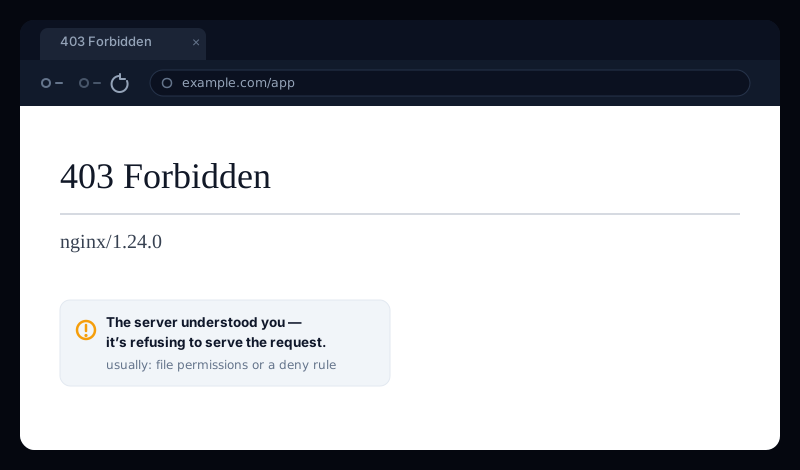
You load a page and nginx hands back a stark white screen: 403 Forbidden, with nginxprinted underneath. Unlike a 404 (“not found”) or a 500 (“the server broke”), a 403 Forbidden means the file is there and the server is healthy — nginx simply refuses to serve the request. The good news: on nginx the cause is almost always one of a short, well-known list, and each has a direct fix.
This guide covers what an nginx 403 actually means, how to read the one log line that tells you exactly which cause you have, and the fix for each — permissions, missing index files, deny rules, wrong root/alias paths, and SELinux.
What "403 Forbidden" means in nginx
403 is an HTTP status code that means “I understood your request, but I'm not going to fulfil it.”The request reached nginx, nginx knows what you asked for, and it has decided you're not allowed to have it. That's different from a 404 Not Found (the resource doesn't exist) and a 500 Internal Server Error (something crashed while handling it).
Because the server itself is up and responding, a 403 is an authorizationproblem, not an availability problem. You'll see the same error written a few ways — nginx 403 forbidden, nginx error 403, 403 forbidden nginx — but the underlying causes are the same handful below.
Read the error log first — it names the cause
sudo tail -n 20 /var/log/nginx/error.logMatch what you see there to the cause:
"Permission denied"→ a file/directory permissions problem (jump to the fix below)."directory index of "..." is forbidden"→ nginx got a directory request with no index file andautoindexis off."access forbidden by rule"→ an explicitdenydirective in your config is blocking the client.
The common causes of an nginx 403
- File or directory permissions. The nginx worker user (
www-dataon Debian/Ubuntu,nginxon RHEL/CentOS) can't read the file or one of the parent directories. This is the number-one cause. - No index file in a directory. A request for a folder (e.g.
/app/) with noindex.html/index.phpandautoindex offreturns 403 instead of listing files. - An explicit
denyrule. Anallow/denyblock, an IP allow-list, or a location that blocks dotfiles is rejecting the request on purpose. - A wrong
rootoraliaspath.nginx is pointed at a directory that doesn't contain what you think — often analiaswith a missing or doubled trailing slash. - SELinux (RHEL/CentOS/Rocky). Permissions look correct, but SELinux's security context blocks nginx from reading the files.
- HTTP Basic Auth misconfigured. An
auth_basicblock with a missing or unreadable password file rejects everyone.
Fix 1: File and directory permissions
This clears the majority of nginx forbidden 403 cases. nginx must be able to read every file it serves and execute (enter) every directory in the path to it. The standard safe permissions are 644 for files and 755 for directories.
- Find your nginx worker user. Run
ps aux | grep nginx— the worker processes run aswww-dataornginx. - Set correct ownership and permissions on your web root (adjust the path and user):
# Give the web files a sane owner (www-data on Debian/Ubuntu)
sudo chown -R www-data:www-data /var/www/example.com

# Directories 755 (readable + enterable), files 644 (readable)
sudo find /var/www/example.com -type d -exec chmod 755 {} \;
sudo find /var/www/example.com -type f -exec chmod 644 {} \;
Check the parent directories too
x) permission on every folder in the path, not just the web root. A home directory like /home/deploy is often 700— nginx can't traverse it, so files inside 403 even with perfect permissions. Run namei -l /var/www/example.com/index.html to see the permission of every level at once.Fix 2: Missing index file (directory request)
If the log says directory index of "/var/www/..." is forbidden, nginx received a request for a directory but found no index file to serve. You have two choices.
Point at the right index file
Make sure the index directive lists a file that actually exists in that directory:
server {
    # ...
    index index.html index.htm index.php;
}
Or turn on directory listing (only if you want it)
For a downloads folder or a static file index, enable autoindex for that location — but never on an app root, as it exposes your files:
location /downloads/ {
    autoindex on;
}
Reload nginx after any config change: sudo nginx -t && sudo systemctl reload nginx.
Fix 3: An explicit deny rule
If the log says access forbidden by rule, something in your config is blocking the request on purpose. Search your config for deny:
sudo grep -rn "deny" /etc/nginx/Typical culprits:
- An IP allow-list like
allow 10.0.0.0/8; deny all;that doesn't include your address. - A dotfile block such as
location ~ /\\. { deny all; }— fine for.git, but it also blocks legitimate paths like.well-known/used by Let's Encrypt if not excepted. - A leftover maintenance block that returns 403 for everyone but a whitelisted IP.
Keep .well-known reachable
/.well-known/acme-challenge/ — add an explicit location ~ /\\.well-known { allow all; } before the deny, or certificate renewals will start failing with 403.Fix 4: Wrong root or alias path
If nginx is pointed at the wrong directory, it can't find your files and returns 403 (or 404). The classic trap is alias with a mismatched trailing slash:
# WRONG — a request for /static/app.js looks for
# /var/www/assetsapp.js because the slashes don't line up
location /static/ {
    alias /var/www/assets;
}

# RIGHT — trailing slash on both, so /static/app.js
# maps to /var/www/assets/app.js
location /static/ {
    alias /var/www/assets/;
}
Confirm what nginx is actually resolving by checking the full path in the error log line, then verify the file exists at exactly that path with ls -l.
Fix 5: SELinux (RHEL, CentOS, Rocky, Alma)
On Red Hat–family systems, permissions can be perfect and nginx still 403s because SELinux blocks the read. Check for it:
# A denial shows up here if SELinux is the cause
sudo ausearch -m avc -ts recent | grep nginx

# Restore the correct context on your web root
sudo restorecon -Rv /var/www/example.com

# If you serve from a non-standard path, label it as web content
sudo semanage fcontext -a -t httpd_sys_content_t "/srv/mysite(/.*)?"
sudo restorecon -Rv /srv/mysite
If nginx needs to make outbound connections (e.g. a reverse proxy to an app server) and SELinux blocks that, allow it with sudo setsebool -P httpd_can_network_connect 1.
Getting a 403 on a site that isn't yours?
If you're just trying to visita page and hit a 403, the server is deliberately refusing your request — you usually can't fix that from your end, but a few things are worth trying:
- Reload without the cache (
Ctrl/Cmd + Shift + R) and clear cookies for the site — a stale session can trigger a 403. - Turn off a VPN or proxy. Many sites block datacenter and VPN IP ranges with a 403.
- Check the URL. You may be requesting a directory or a private path the owner has locked down.
Know before your visitors do
A misconfigured deploy that starts returning 403 Forbidden — a permissions change, a bad alias, an expired ACME renewal blocked by a deny rule — can take a section of your site offline while everything looks fine from your own logged-in browser. The worst way to find out is from a customer.
Uptura's uptime monitoring checks your nginx sites around the clock and can assert on the exact status code you expect, so a page that flips to 403 (or 500) pages you within minutes instead of sitting broken. You can also spot-check any URL right now with our free website status checker — it shows the live status code, response time, and full redirect chain. Uptura is free.
Chasing a different server error? Our guides on fixing NET::ERR_CERT_COMMON_NAME_INVALID and “DNS server not responding” cover the SSL and DNS sides of an unreachable site.