DNS Server Not Responding? How to Fix It (Windows, Mac & Router)
"DNS server not responding" means your device can't reach the server that turns domain names into IP addresses. Here's what causes it and a step-by-step fix for Windows, Mac, phones, and site owners.
A page won't load, you run the network troubleshooter, and it hands back a vague verdict: DNS server not responding. It's one of the most common connection errors on Windows and Mac — and most of the time it's something you can fix in a couple of minutes.
This guide explains what the message actually means, then walks through the fixes in order — quick checks first, then Windows, Mac, and phone steps, and finally what to do if the site is yoursand it's your visitors seeing the error.
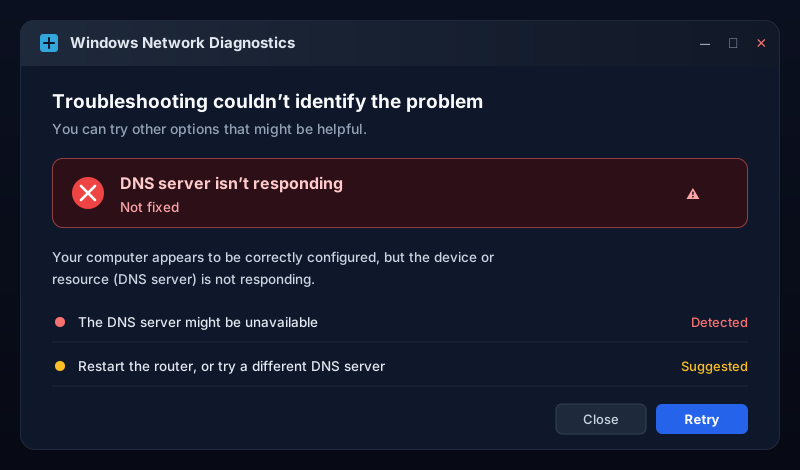
What "DNS server not responding" means
Every time you visit a website, your device asks a DNS server(the internet's phone book) to turn a domain name like example.cominto the numeric IP address computers actually connect to. When your device can't reach that server — or the server doesn't reply in time — the lookup fails and you see DNS server not responding.
In one sentence: your internet connection is probably fine, but the name-to-address lookup step is broken.You'll see the same underlying problem described a few different ways — DNS server unavailable, no response from DNS server, a DNS resolution error, or DNS_PROBE_FINISHED_NXDOMAIN in Chrome. The fixes below cover all of them.
Quick sanity check
Why it happens
- The DNS server itself is down or overloaded.Your ISP's default DNS server can slow to a crawl or drop offline.
- Your router needs a restart.A router that's been up for weeks can stop relaying DNS correctly.
- A stale DNS cache. Your device saved an old, now-wrong answer and keeps reusing it.
- Wrong network adapter settings. A hard-coded or invalid DNS address on your PC or Mac.
- A VPN, firewall, or antivirus intercepting or blocking DNS traffic.
- A problem with the website's own DNS.If it's your site, a misconfigured or expired DNS record can make everyone see this error.
Fastest fixes to try first
Before changing any settings, these clear up the majority of cases:
- Try a different browser or device. This tells you whether the problem is one app, one device, or your whole network.
- Restart your router and modem. Unplug both, wait 30 seconds, plug the modem back first, then the router. This alone fixes a large share of DNS errors.
- Restart your computer. It clears temporary network state and a stale resolver.
- Temporarily disable your VPN or antivirus. If the site loads with them off, add an exception rather than leaving them disabled.
Fix it on Windows
If the quick fixes didn't do it, work through these in order.
1. Flush the DNS cache
Open Command Prompt as Administrator and run these one at a time:
ipconfig /flushdns
ipconfig /registerdns
ipconfig /release
ipconfig /renew
netsh winsock reset
Restart the PC after the last command.
2. Set a public DNS server
Switching off your ISP's DNS to a fast public one fixes it in most cases. Go to Settings → Network & Internet → Change adapter options, right-click your connection → Properties → Internet Protocol Version 4 (TCP/IPv4) → Properties, then choose Use the following DNS server addresses and enter:
- Cloudflare:
1.1.1.1and1.0.0.1 - Google:
8.8.8.8and8.8.4.4
Click OK, then flush the DNS cache again (step 1).
3. Restart the DNS Client service
Open services.msc, find DNS Client, right-click it and choose Restart. Also try disabling any extra network adapters you don't use (like a spare Bluetooth or virtual adapter), which can interfere with lookups.
Fix it on Mac
- Flush the resolver cache. Open Terminal and run:
sudo dscacheutil -flushcache
sudo killall -HUP mDNSResponder- Change your DNS servers. Go to
System Settings → Network, select your connection →Details→DNS, then add1.1.1.1and8.8.8.8and remove the old entries. - Renew the DHCP lease. In the same Network settings, under
TCP/IP, click Renew DHCP Lease.
Fix it on Android & iPhone
- Toggle Airplane mode on and off to force the phone to reconnect and re-request DNS.
- Forget and rejoin the Wi-Fi network. This clears bad network settings the phone cached.
- Set a private DNS (Android).
Settings → Network & internet → Private DNS→ enter1dot1dot1dot1.cloudflare-dns.com. - Set DNS manually (iPhone).
Settings → Wi-Fi→ tap your network →Configure DNS → Manualand add1.1.1.1.
If the site is yours — everyone sees the error
If visitors report "DNS server not responding" (or the site is simply unreachable) but nothing's wrong on their end, the problem is your domain's DNS. First, confirm what your records actually resolve to:
# Look up the site's records from a public resolver
nslookup example.com 1.1.1.1

# Or check a specific record type
dig example.com A +short
dig example.com NS +short
The usual culprits:
- Nameservers are wrong or unreachable. The
NSrecords at your registrar don't point at your DNS provider, or that provider is down. - A missing or wrong
A/CNAMErecord means the hostname resolves to nothing, which surfaces asDNS_PROBE_FINISHED_NXDOMAIN. - An expired domain. If the registration lapsed, the records stop resolving entirely.
- A recent DNS change still propagating. Edits can take up to 24–48 hours to reach every resolver, so some visitors see the old (or no) answer.
Changed DNS recently?
1.1.1.1, not just your own machine.How to stop it happening again
For a site owner, the worst version of this error is the one you find out about from an angry customer. A nameserver quietly goes unreachable, a record gets changed, or the domain slips toward expiry — and by the time you notice, real visitors have already hit a dead site.
That's exactly what Uptura's DNS monitoringis for: it checks your domain's records around the clock, alerts you the moment an A, CNAME, MX, or NSrecord changes or stops resolving, and warns you before the domain expires — so a DNS failure never quietly takes your site offline. It's free.
Certificate errors tend to travel with DNS problems, too — if you're troubleshooting an unreachable site, our guide on fixing NET::ERR_CERT_COMMON_NAME_INVALID covers the SSL side.