WordPress Uptime Monitoring: How to Keep Your Site Online (2026)
Set up WordPress uptime monitoring to catch outages before your visitors do. Why WP sites go down, why a plugin isn't enough, and how to get instant alerts — free.
WordPress runs a huge share of the web — and with plugins, themes, PHP, a database, and a host all in the mix, WordPress sites go down more often than static ones. WordPress uptime monitoring is how you find out the moment that happens, instead of hearing it from a customer hours later. This guide covers why WordPress sites go down, why a monitoring plugin isn't enough on its own, and how to set up reliable uptime monitoring for your WordPress site.
What is WordPress uptime monitoring?
Uptime monitoring wordpress owners rely on is simply an automated service that requests your site on a schedule — typically every 1 to 5 minutes — and alerts you if it stops responding. For a deeper look at how monitoring works in general, see our complete guide to uptime monitoring. The WordPress-specific part is why you need it: WordPress has more ways to break than a plain HTML site.
Why WordPress sites go down more than you'd think
- Plugin & theme conflicts. The single most common cause — roughly half of WordPress outages — usually triggered by an update that breaks compatibility with your PHP version, theme, or another plugin. This is also the classic cause of the White Screen of Deathand “There has been a critical error on this website.”
- PHP memory exhaustion. WordPress defaults to a 32MB memory limit — far too low for a modern site. Page builders and WooCommerce can easily blow past it (256MB+ is often needed), crashing the site.
- Hosting overload.A traffic spike, a bot swarm, or hitting your host's resource limits can take a site offline — common on shared hosting.
- Database errors.“Error establishing a database connection” from bad credentials, a crashed DB, or exhausted connections.
- Domain, DNS & SSL issues. An expired domain, a changed DNS record, or a lapsed SSL certificate takes the site down (or makes browsers block it) even when WordPress itself is fine.
The catch with monitoring plugins
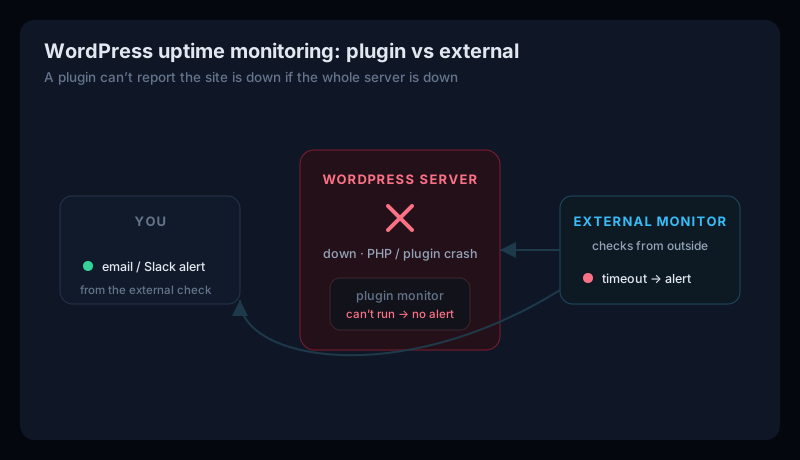
The obvious move is a monitoring plugin. Jetpack, for example, offers free downtime monitoring that checks your site every five minutes and emails you. It's better than nothing — but it has a fundamental blind spot:
A plugin can't report what took it down with it
That's why externaluptime monitoring — a service that checks your site from outside your server — is the reliable foundation. It sees your site the way a visitor does, so a total outage still triggers an alert. A plugin can be a nice add-on, but it shouldn't be your only line of defence.
How to set up WordPress uptime monitoring
- Pick an external monitor.Choose a service that checks from outside your host (not only a plugin). Add your site's URL and set a check interval — every 1–5 minutes is the sweet spot.
- Connect your alerts.Add email and Slack so the right people hear about an outage immediately. Prefer a monitor that confirms a failure across checks before alerting, so a single blip doesn't wake you at 3 a.m.
- Add the WordPress-specific checks. Point a monitor at your login/admin URL too, and watch SSL and DNS — an expired certificate or a bad DNS change takes a WP site down just as surely as a PHP crash.
- (Optional) add a plugin as a second signal. A plugin like Jetpack can complement external monitoring — just don't rely on it alone for the reasons above.
Beyond uptime: what else to watch on a WordPress site
Plenty can break while WordPress is still technically “up.” A good setup also watches:
- SSL certificate expiry — a lapsed cert makes browsers block your site. Check yours with our free SSL checker.
- DNS changes — a wrong or hijacked record sends visitors nowhere.
- Core Web Vitals — plugin bloat and heavy themes slow WordPress down, which hurts rankings.
- SEO & redirects — a plugin update that adds a noindex or a redirect loop can quietly cost you traffic.
WordPress Uptime Monitoring FAQ
What is WordPress uptime monitoring?
WordPress uptime monitoring is the practice of automatically checking that your WordPress site is online and responding, on a schedule, and alerting you the moment it goes down. Because WordPress sites have more moving parts than static sites — plugins, themes, PHP, a database, and a host — they go down more often, which makes monitoring especially worthwhile.
Why do WordPress sites go down?
The most common cause is plugin or theme conflicts — often after an update that breaks compatibility with your PHP version — which account for roughly half of WordPress outages. Other frequent causes are PHP memory exhaustion (WordPress defaults to just 32MB), hosting overload from traffic or bots, 'error establishing a database connection', expired domains or SSL, and broken core files after an incomplete update.
Does a monitoring plugin like Jetpack work?
Partly. Jetpack offers free downtime monitoring that checks your site every five minutes and emails you, which is better than nothing. But a plugin runs inside WordPress — so if PHP, the database, or the whole server goes down, the plugin can't run and can't alert you. That's why external monitoring, which checks from outside your server, is the more reliable way to catch a full outage.
What's the best way to monitor WordPress uptime for free?
Use an external uptime monitor rather than relying only on a plugin. Uptura checks your WordPress site from outside on a schedule, confirms a failure across checks before alerting, and notifies you by email and Slack — free during the public beta — so you find out about an outage even when WordPress itself can't tell you.
Monitor your WordPress site free
Upturamonitors your WordPress site from outside your server, around the clock — so you're alerted even when WordPress itself can't tell you it's down. It confirms a failure across checks before alerting (no false alarms), notifies you by email and Slack, and — because “up” isn't the same as “working” — also watches SSL, DNS, Core Web Vitals, SEO, and accessibility from the same dashboard. It's free during our public beta, no credit card required. Create a free account and set up your first WordPress monitor in a couple of minutes.