Accessibility Audit Checklist: How to Audit a Website for WCAG (2026)
A step-by-step website accessibility audit checklist for WCAG 2.2 AA: how to plan the audit, free tools to use, every check grouped by area, and an audit template for findings.
This accessibility audit checklistwalks you through reviewing a website against WCAG 2.2 Level AA, the standard most accessibility laws point to. It covers how to plan the audit, which tools to use, every check to run — grouped so you can work through them page by page — and a simple audit template for recording what you find. Use it for your own site or for a client's.
What is a website accessibility audit?
A website accessibility audit is a structured review of a site against an accessibility standard — usually the WCAG guidelines— to find anything that stops people with disabilities from using it. A good audit doesn't just list problems; it tells you which ones block people most, where they are, and how to fix them.
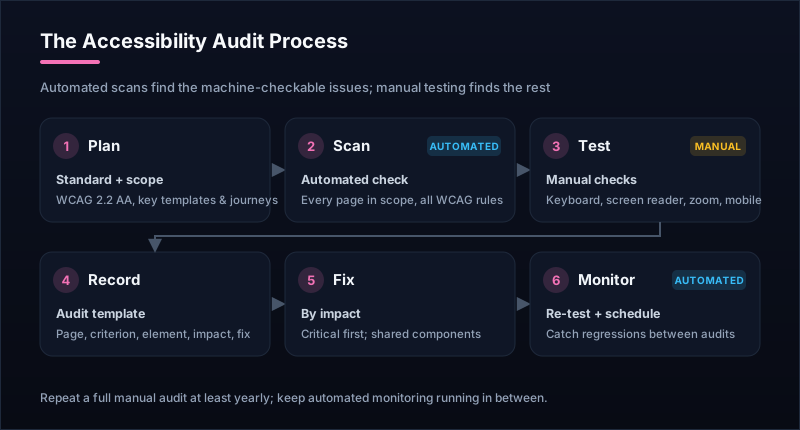
Automated vs. manual testing
Before you start: plan the audit
- Choose the standard. WCAG 2.2 Level AA is the practical target; it also covers WCAG 2.1 AA, which the DOJ rule and EN 301 549 name.
- Define the scope. You rarely need to test every page. Pick one of each template (homepage, article, product, category, search results, contact) plus your key journeys: sign-up, login, and checkout.
- Gather your tools. An automated scanner, a contrast checker, a keyboard, and a screen reader. The list below is all free.
- Set up a tracking sheet. Use the audit template at the end of this guide so every issue is recorded the same way.
Free tools for a website accessibility audit
- Automated scan: the Uptura accessibility checker runs axe-core on any URL and lists each failing WCAG rule with its impact and the element to fix.
- Color contrast: the color contrast checker tests any text and background pair against AA and AAA, and suggests a passing color.
- Screen readers: NVDA (free, Windows), VoiceOver (built into macOS and iOS), and TalkBack (built into Android).
- Browser: the built-in zoom (to 200%) and responsive mode (320px wide) for the resize and reflow checks.
The accessibility audit checklist
Work through these checks on each page in your scope. The number in brackets is the WCAG 2.2 success criterion, so you can look up the details and record it in your report. Every check here is Level A or AA.
Images and media
Anything that isn't text needs a text equivalent.
- Meaningful images have descriptive alt text; decorative images have alt="". (1.1.1)
- Images of text, charts, and infographics have a text version nearby. (1.1.1)
- Pre-recorded videos have accurate captions (not just auto-generated). (1.2.2)
- Audio-only content (like podcasts) has a transcript. (1.2.1)
- Carousels, videos, and animations can be paused or stopped. (2.2.2)
Color and visual design
Content has to be readable for people with low vision and color blindness.
- Body text has at least 4.5:1 contrast; large text at least 3:1. (1.4.3)
- Buttons, input borders, icons, and focus rings have at least 3:1 contrast. (1.4.11)
- Color isn't the only way information is shown (e.g. links are underlined, errors have text). (1.4.1)
- Text can be zoomed to 200% without content being cut off or overlapping. (1.4.4)
- At 320px wide, content reflows without horizontal scrolling. (1.4.10)
Keyboard and focus
Everything must work without a mouse.
- Every link, button, menu, form, and custom widget works with the keyboard. (2.1.1)
- There are no keyboard traps — focus can always move on (and modals close with Escape). (2.1.2)
- Keyboard focus is always clearly visible. (2.4.7)
- Focus moves in a logical order that matches the visual layout. (2.4.3)
- Focused elements aren't hidden behind sticky headers, cookie banners, or chat widgets. (2.4.11)
- A skip link (or landmarks) lets users jump past repeated navigation. (2.4.1)
Structure and navigation
Screen reader users navigate by structure, so it has to be in the code.
- Every page has a unique, descriptive title. (2.4.2)
- There's one H1, and headings follow a logical order without skipping levels. (1.3.1)
- Lists, tables, and landmarks (header, nav, main, footer) use real HTML elements. (1.3.1)
- Link text describes its destination — no bare “click here” or “read more”. (2.4.4)
- The page language is set in the html lang attribute. (3.1.1)
- Navigation appears in the same place and order on every page. (3.2.3)
Forms
Forms are where most users get stuck — sign-up, contact, and checkout above all.
- Every field has a visible label connected to it (placeholders aren't labels). (3.3.2)
- Errors are identified and described in text, next to the field. (3.3.1)
- Error messages suggest how to fix the problem. (3.3.3)
- Common fields (name, email, address) use autocomplete attributes. (1.3.5)
- Login doesn't require solving a puzzle or memorizing; paste and password managers work. (3.3.8)
Interactive components and code
Custom widgets must tell assistive technology what they are and what state they're in.
- Custom controls (tabs, accordions, toggles, menus) expose their name, role, and state. (4.1.2)
- Icon-only buttons have an accessible name, like “Search” or “Close”. (4.1.2)
- Status messages (“Added to cart”, “Saved”) are announced to screen readers. (4.1.3)
- Click and tap targets are at least 24 × 24 CSS pixels, or spaced apart. (2.5.8)
- Anything that can be dragged can also be done with a single click or tap. (2.5.7)
Three manual tests no tool can do for you
The keyboard test
Put the mouse away and press Tab from the top of the page. Can you reach every interactive element, in a sensible order, and always see where you are? Can you open and close menus and dialogs, submit forms, and get past any embedded video or map?
The screen reader test
Turn on NVDA or VoiceOver and listen. Do images, buttons, and links make sense when read aloud? Can you jump between headings and understand the page structure? Are form errors and status messages announced?
The zoom and mobile test
Zoom the browser to 200%, then narrow the window to phone width. Text should stay readable without horizontal scrolling, and nothing should overlap or disappear.
Accessibility audit template: how to record findings
Log every issue with the same fields so it's easy to prioritize, assign, and re-test. A spreadsheet with these columns works well:
| Column | What to record |
|---|---|
| Page / screen | the URL or template where the issue appears |
| WCAG criterion | the success criterion and level, e.g. 1.4.3 (AA) |
| Issue | what's wrong, in plain language |
| Element | the exact element or selector affected |
| Impact | critical, serious, moderate, or minor — who is blocked and how badly |
| How to fix | the recommended change |
| Owner & status | who's fixing it, and whether it's open, fixed, or re-tested |
How to prioritize what you find
- Critical— blocks a task completely, like a checkout button that can't be reached by keyboard. Fix first.
- Serious — makes a task very hard, like unlabeled form fields or very low contrast on body text.
- Moderate and minor — friction, like a skipped heading level or vague link text. Batch these into regular work.
Fix issues in shared templates and components first: one change to a header, footer, or button component can resolve the same issue on hundreds of pages.
After the audit: fix, re-test, and monitor
Re-test each fix with the same check that found it, then publish an accessibility statement. If the audit is for compliance, our guide on how to make your website ADA compliant covers the legal side and the most common fixes.
Most importantly, don't let the audit be a one-off. New pages, content, and plugins introduce new issues every month. Schedule a full manual audit at least once a year, and let automated checks run continuously in between.
Accessibility audit FAQ
What is an accessibility audit?
An accessibility audit is a structured review of a website or app against an accessibility standard — usually WCAG 2.1 or 2.2 Level AA — to find barriers for people with disabilities. A complete audit combines automated scanning with manual testing using a keyboard and screen readers, and ends with a prioritized list of issues to fix.
How do you perform a website accessibility audit?
Define the scope (key templates and user journeys) and the standard (WCAG 2.2 AA), run an automated scan on each page, then test manually with a keyboard, a screen reader, zoom, and a mobile device. Record each issue with the page, WCAG criterion, element, impact, and fix, then prioritize, fix, and re-test.
How long does an accessibility audit take?
An automated scan of one page takes seconds. A manual audit of a small business site — around 10 to 15 representative pages and flows — typically takes a few days. Larger sites and apps with many custom components take longer, which is why auditing templates rather than every single page is standard practice.
Can an accessibility audit be fully automated?
No. Automated tools reliably catch around a third to half of WCAG issues — things like missing alt text, low contrast, and missing form labels. Whether alt text is actually meaningful, whether the focus order makes sense, or whether a custom widget is usable with a screen reader still needs a human. Automation is best for fast first passes and ongoing monitoring.
How often should you audit a website for accessibility?
Do a full manual audit at least once a year and after any redesign, and run automated checks continuously — new content, plugins, and releases introduce new issues all the time. Scheduled automated monitoring catches those regressions between full audits.
Automate the repeatable part of your audit
Start with a free scan of your key pages using the accessibility checker. Then let Uptura's accessibility monitoringre-audit them on a schedule and alert you when a new WCAG violation appears — with white-label PDF reports on Pro if you audit sites for clients. It's free to start; create an account in a couple of minutes.