Backup Monitoring: How to Get Alerted When a Backup Fails
Backups fail silently. How backup monitoring works, the 3 checks every backup job needs, and alerts for crontab, pg_dump, mysqldump, restic and Windows.
Most teams find out a backup is broken at the worst possible moment: when they need to restore it. The nightly job stopped running weeks ago, or it has been writing empty files since a password changed, and nobody noticed because nothing told them.
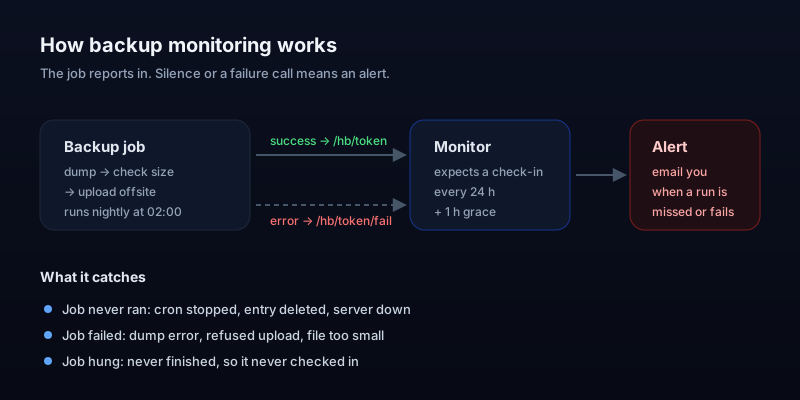
Backup monitoring fixes that. This guide covers why backups fail silently, the three things worth checking on every run, and how to set up alerts for a backup job with a single line, with examples for crontab, database dumps, restic and Windows.
Why backups fail silently
Backups run unattended, usually at night, and their output goes to a log file or nowhere at all. When something breaks, there's no error on anyone's screen. The most common causes:
- The job stopped running. The cron service is down, the crontab entry was removed during a server move, or the scheduled task was disabled.
- The script fails partway. A database dump errors out, but the script carries on and still looks successful.
- The disk is full. The backup writes a truncated or zero-byte file and moves on.
- Credentials expired. A database password, an S3 key or an SSH key changed, so the dump or the upload is refused.
- The offsite copy never uploads. The local file is fine, but the copy that protects you from losing the server isn't there.
- The job hangs. A lock or a slow network keeps it running for hours without finishing.
If your cron jobs are already misbehaving, our guide to a cron job not running walks through finding the cause.
What backup monitoring should check
A good setup answers three questions after every run. Each one catches a different group of failures.
1. Did the backup run?
This catches a stopped cron service, a deleted job and a dead server. You can't detect it from inside the job, because a job that doesn't run can't report anything. You need something outside that expects to hear from the job and notices when it doesn't. That's a heartbeat (or check-in) monitor.
2. Did it finish without errors?
This catches failed dumps, refused uploads and hung jobs. The job should only report success when every step succeeded, and report failure when one doesn't.
3. Is the output usable?
This catches empty and truncated files. Before reporting success, the script checks that the backup file exists, is recent, and isn't suspiciously small. A regular restore test covers the rest.
How to monitor a backup job
The simplest reliable method is a heartbeat: give each backup job a unique check-in URL, and have the job call it when it finishes. The monitor knows how often the job should run. If the call doesn't arrive in time, you get an alert. The examples below use Uptura's check-in URL format; any heartbeat tool works the same way.
Crontab: one line
Add the check-in after your backup command with &&, so it only runs when the backup exits successfully:
# Nightly backup at 02:00, check in only if it succeeded
0 2 * * * /usr/local/bin/backup.sh && curl -fsS -m 10 --retry 3 -o /dev/null https://backend.uptura.io/hb/<your-token>
That covers questions one and two for most jobs: no run, a failed run or a hung run all mean no check-in, and no check-in means an alert.
A backup script that reports failures straight away
Waiting for a missed check-in is fine, but you can do better. This script stops on the first error, calls the /fail URL so you're alerted right away, and checks the file size before reporting success:
#!/usr/bin/env bash
set -euo pipefail

CHECKIN="https://backend.uptura.io/hb/<your-token>"
FILE="/backups/db-$(date +%F).sql.gz"

# Any failing command below jumps here and reports the failure
trap 'curl -fsS -m 10 -o /dev/null "$CHECKIN/fail"' ERR

pg_dump mydb | gzip > "$FILE"

# Question 3: refuse to report success for a tiny or empty file
if [ "$(stat -c %s "$FILE")" -lt 100000 ]; then
  echo "Backup file is too small" >&2
  exit 1
fi

# Copy offsite, then report success
aws s3 cp "$FILE" s3://my-backups/
curl -fsS -m 10 --retry 3 -o /dev/null "$CHECKIN"
Pick a sensible minimum size
stat -f %z instead of stat -c %s.MySQL and MariaDB
set -o pipefail
mysqldump --single-transaction mydb | gzip > /backups/mydb.sql.gz \
  && curl -fsS -m 10 --retry 3 -o /dev/null https://backend.uptura.io/hb/<your-token>
Without pipefail, a failed mysqldump piped into gzip still counts as a success, because the pipeline returns gzip's exit code. This is one of the most common reasons a backup “works” for months while writing nothing useful.
restic or Borg
restic backup /var/www /etc \
  && restic check \
  && curl -fsS -m 10 --retry 3 -o /dev/null https://backend.uptura.io/hb/<your-token>
Running restic check (or borg check) before the check-in means you only report success when the repository is consistent.
Windows Task Scheduler
At the end of a PowerShell backup script, after the steps that matter:
# Stop on errors, then check in only if everything above succeeded
$ErrorActionPreference = "Stop"
# ... backup steps ...
Invoke-RestMethod -Uri "https://backend.uptura.io/hb/<your-token>" -TimeoutSec 10
WordPress backup plugins
Plugins like UpdraftPlus run on WP-Cron, which you can't easily add a check-in to. A dependable workaround is a small server cron job that checks the newest backup file in your storage and checks in only if it's from the last 24 hours. If the plugin stops, the file gets old, the check-in stops, and you get an alert.
Setting the schedule and grace time
A heartbeat monitor needs two settings. The period is how often the job runs: one day for a nightly backup. The grace time is how late a check-in can be before it counts as missed. Set it a bit longer than your slowest normal run. If the backup usually takes 20 minutes and occasionally 50, a grace time of an hour avoids false alerts while still telling you the same morning.
Monitoring doesn't replace restore tests
A backup that runs, finishes and has the right size can still fail to restore: a wrong database selected, a missing table, an encryption key nobody kept. Schedule a real restore into a test environment, monthly for most teams, and write down how long it took. That number is your real recovery time.
Backup monitoring checklist
- Every backup job has its own check-in URL.
- The check-in only runs after the backup and the offsite copy succeed.
- Scripts use
set -euo pipefail(or$ErrorActionPreference = "Stop") and call the failure URL on error. - The script checks the file exists and isn't suspiciously small.
- The grace time is longer than the slowest normal run.
- Alerts go to someone who will act on them, not a shared inbox nobody reads.
- A full restore is tested on a schedule.
Backup Monitoring FAQ
What is backup monitoring?
Backup monitoring is checking, automatically and every time, that your backup jobs ran, finished without errors, and produced a usable file, and alerting you when any of that doesn't happen. Its job is to make sure you find out about a broken backup on the day it breaks, not on the day you need to restore.
How do I get alerted when a backup fails?
Make the backup job report in when it finishes. Add a check-in call (a simple HTTP request to a unique URL) at the end of the backup script, only after it succeeds. A heartbeat monitor expects that call on schedule and emails you if it doesn't arrive. Call a separate failure URL when the script catches an error, so you're alerted straight away instead of waiting for the missed check-in.
Why do backups fail silently?
Because nothing is watching them. Backups usually run from cron or a scheduled task at night, and their output goes to a log nobody reads. If cron stops, the disk fills up, credentials expire, or the script exits early, there's no error on screen and no email. Everything looks fine until someone tries to restore.
Is a backup monitoring tool enough, or do I still need restore tests?
You still need restore tests. Monitoring tells you the job ran and produced a file of a sensible size. Only a restore proves the file can actually bring your data back. Monitor every run, and test a full restore on a schedule, for example once a month.
How often should a backup check in?
Every time it runs. Set the monitor's expected period to match the backup schedule (daily for a nightly backup) and add a grace time a little longer than the longest normal run, so a slow night doesn't trigger a false alert.
Monitor your backups free
Uptura's cron job monitoring works exactly as described above. Create a check-in for each backup, set its schedule and grace time, and add the URL to your script. If a run is missed or the job calls the failure URL, you get an email, and another when it checks in again. It's free for up to 3 jobs; Pro adds Slack, Discord and webhook alerts. To write the schedule itself, our free cron expression generator turns “every night at 2am” into 0 2 * * *.
The same dashboard also watches the websites those backups protect, with uptime and SSL checks. Create a free account to set up your first backup check-in in a couple of minutes.