Cron Job Not Running? How to Check, Find the Logs & Fix It
Cron job not running? How to check if a cron job is running, where to find cron job logs on Ubuntu, CentOS and macOS, the 10 most common causes, and how to get alerted next time.
You set up a cron job, waited for it to fire, and nothing happened. No backup file, no email, no error either. A cron job not runningis one of the most frustrating problems on a Linux server, because cron fails quietly: it doesn't tell you anything unless you go looking.
This guide works through it in the order that finds the problem fastest: first how to check whether the job is running at all, then where to find the cron job logs, then the ten causes behind almost every broken cron job, and finally how to get an alert the next time one stops.
How to check if a cron job is running
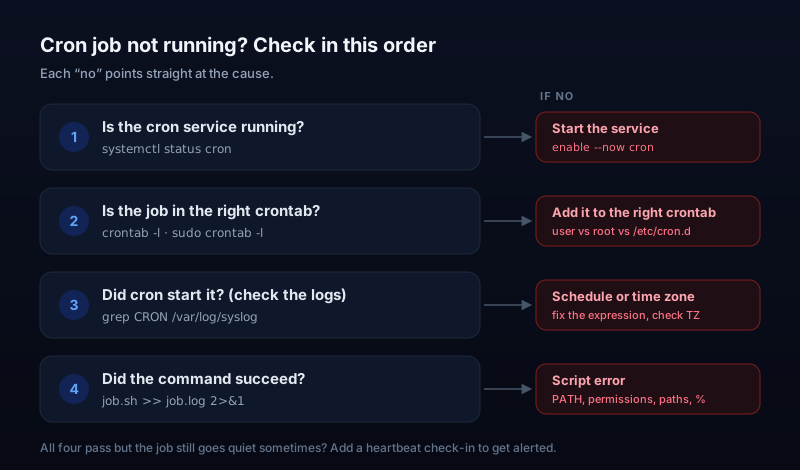
Before changing anything, answer four questions. Each step narrows the problem down, and most broken jobs are found by step three.
1. Is the cron service running?
If the cron daemon itself is stopped, no job on the machine runs. On Ubuntu and Debian the service is called cron; on Red Hat, CentOS, Rocky, Alma and Fedora it's crond.
# Ubuntu / Debian
systemctl status cron

# RHEL / CentOS / Rocky / Alma / Fedora
systemctl status crond

# Any system: is a cron process alive?
pgrep -a cron
You want to see active (running). If it's inactive, start it and make it start on boot with sudo systemctl enable --now cron (or crond).
2. Is the job actually in the crontab?
Each user has their own crontab, and root's is separate from yours. A job added with sudo crontab -elives in root's crontab and won't show up in your own.
# Your crontab
crontab -l

# Root's crontab
sudo crontab -l

# System-wide jobs (these need a user field!)
cat /etc/crontab
ls /etc/cron.d/
While you're here, check the schedule really means what you think. Paste it into our cron expression generator to see it in plain English with the next five run times. A job set to 0 2 * * 1runs on Mondays only, which can look like "not running" on any other day.
3. Did cron try to start it?
This is where the cron logs come in (next section). If the log shows a line for your command at the expected time, cron did its job and the problem is inside the command. If there's no line at all, the problem is the schedule, the crontab, or the service.
4. Did the command succeed?
Cron starts the command and moves on; it doesn't care whether it worked. To see what actually happened, send the output to a file by adding this to the end of the line:
*/15 * * * * /home/deploy/sync.sh >> /home/deploy/sync.log 2>&12>&1captures errors too. After the next run, the log file usually tells you exactly what's wrong: a missing command, a permission error, a bad path.
Where to find cron job logs
Cron writes a line every time it starts a job. Where that line ends up depends on the system:
# Ubuntu / Debian (rsyslog)
grep CRON /var/log/syslog

# Ubuntu / Debian (systemd journal)
journalctl -u cron --since "1 hour ago"

# RHEL / CentOS / Rocky / Alma
sudo tail -f /var/log/cron
journalctl -u crond --since today

# macOS
log show --predicate 'process == "cron"' --last 1h
A healthy run looks like this on Ubuntu:
Nov 2 02:00:01 web-1 CRON[48213]: (deploy) CMD (/home/deploy/backup.sh)That line only proves cron startedthe command. It says nothing about whether the backup finished. For that you need the command's own output (step 4 above), or the job's exit status.
No /var/log/syslog?
journalctl -u cron. On very old or stripped-down systems, cron may email output to the local user instead; check /var/mail/$USER.10 reasons a cron job is not running
- The cron service is stopped. After a reboot, an upgrade, or on a fresh container, the daemon may not be running at all. See step 1 above.
- The command works in your shell but not in cron (PATH). Cron runs with a tiny environment, often just
PATH=/usr/bin:/bin. Commands likenode,php,python3ordockerinstalled elsewhere aren't found. Use full paths (find them withwhich node) or setPATH=at the top of the crontab. - Relative paths.Cron starts in the user's home directory, not your project folder. A script that opens
./config.jsonfails. Use absolute paths, orcd /path/to/app && ./job.sh. - The script isn't executable. Fix it with
chmod +x /path/to/job.sh, and make sure it starts with a shebang line such as#!/bin/bash. - It's in the wrong crontab. A job that needs root sits in a normal user's crontab (permission errors), or the other way round. Files in
/etc/crontaband/etc/cron.d/also need a username between the schedule and the command; user crontabs don't. - An unescaped % sign. In a crontab,
%means "new line". A command likedate +%Y-%m-%dgets cut off. Escape it as\%, or move the command into a script. - The schedule is wrong. Day of week and day of month are easy to mix up, and
* 2 * * *runs every minute between 2:00 and 2:59, not once at 2 AM. Check it with the cron expression generator. - The time zone isn't what you expect.Cron uses the server's time zone, which is often UTC on cloud servers. A job meant for 9 AM local time may run hours earlier or later. Check with
timedatectl. - The crontab file is missing its last newline.Some cron implementations ignore the final line if the file doesn't end with a newline. Editing with
crontab -eusually handles this; hand-written files in/etc/cron.d/are the usual offenders. - There's no cron at all. Docker containers, many PaaS platforms and serverless setups don't run a cron daemon. Use the platform's scheduler instead (Kubernetes CronJobs, GitHub Actions schedules, or your host's cron feature).
Test it the way cron runs it
env -i /bin/sh -c '/path/to/job.sh'. If it fails here but works normally, the cause is almost always PATH or a missing environment variable.How to know when a cron job stops running
Everything above helps once you know a job is broken. The real danger is not knowing. A cron job that silently stopped three weeks ago only shows up when you need the backup it should have made, or a customer asks why their invoice never arrived. Checking logs by hand doesn't scale past a couple of jobs.
The fix is heartbeat monitoring: instead of watching the server, you watch the job. Each run calls a unique URL when it finishes, and a monitor alerts you if that call doesn't arrive on time. With &&, the check-in only happens if the job succeeded:
0 2 * * * /home/deploy/backup.sh && curl -fsS -m 10 --retry 3 -o /dev/null https://backend.uptura.io/hb/<your-token>That one line catches every cause in this article:
- cron stopped, the job was removed, or the server rebooted → no check-in → alert
- the script failed (bad PATH, permissions, a crash) →
&&skips the check-in → alert - the job hangs and never finishes → no check-in → alert
Uptura's cron job monitoringworks exactly like this. Give each job a check-in URL, choose how often it runs and a grace period for slow runs, and you'll get an email or Slack alert the moment a run is missed, plus a recovery notice when it checks in again. It's a cron job checker that watches for you, and it's free for up to 3 jobs.
If the job keeps a website running (cache clearing, sitemap builds, queue workers), monitor the site too. Our guide on what uptime monitoring is covers that side.