How to Fix a 500 Internal Server Error
A 500 Internal Server Error means something broke on the server. Here's what an HTTP 500 means, what causes it (including WordPress), and how to fix it.
A 500 Internal Server Error is the server's way of saying “something broke on our end.” Unlike a 4xx client error, the request was fine — it's the server that failed while handling it. And unlike a 502 or 503, an HTTP 500 is the vague catch-all: it tells you something went wrong, but not what. This guide covers what an error 500 means, what causes it (including in WordPress), and how to fix a 500 as a visitor or as the site owner.
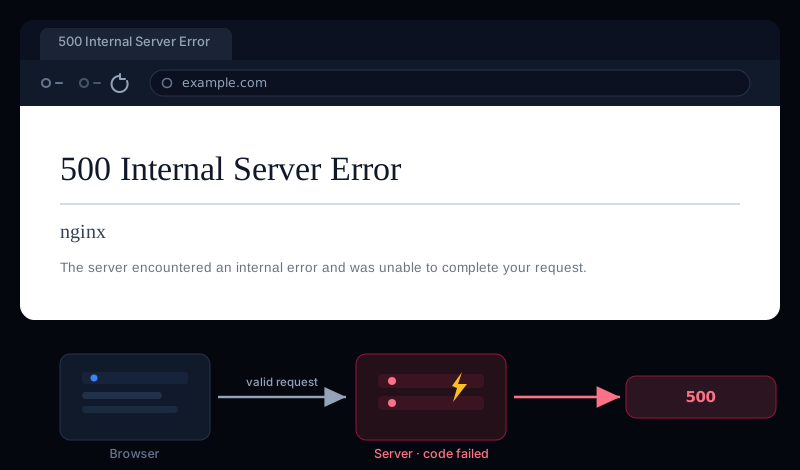
What Is a 500 Internal Server Error (500 Error Meaning)
A 500 Internal Server Error is a catch-all HTTP status code the server returns when something goes wrong on its side while processing an otherwise valid request — a crashed script, an unhandled exception, a bad configuration, or an exhausted resource. The page is reachable; the code behind it failed.
So the 500 error meaningis deliberately generic — and that's the whole problem with it. When people ask what is HTTP error 500 or what does internal server error mean, the honest answer is: the server hit an error it didn't know how to handle, so it fell back to a 500 instead of showing you the real one. The real error is in the server's log, not on the page.
What Causes an HTTP 500 Error
Because a 500 is a catch-all, the causes are broad — but on a typical web app they cluster into a few:
- A code error — an unhandled exception, a fatal PHP error, or a bug that only shows up on certain input.
- An exhausted resource — the process ran out of memory, hit a timeout, or maxed a database connection pool.
- A bad configuration — a broken
.htaccess, a wrong file permission, or an invalid server config the app can't start with. - A failed dependency — a database, cache, or external API the request depends on is down or erroring.
500 Internal Server Error in WordPress
WordPress is the single most common place people hit a 500, and the usual suspects are predictable. To fix a 500 internal server error in WordPress (including an Elementor server error 500), work through these in order:
- A plugin or theme — the top cause. A bad update (Elementor is a frequent one) throws a fatal error. Deactivate plugins (rename the
wp-content/pluginsfolder over SFTP if you can't reach the admin) and re-enable them one by one to find it. - PHP memory limit — raise it in
wp-config.phpwithdefine('WP_MEMORY_LIMIT', '256M');(and inphp.iniif you control it). - A corrupt
.htaccess— rename it to.htaccess_oldand re-save permalinks in Settings → Permalinks to regenerate a clean one. - The wrong PHP version — an old theme on new PHP (or vice-versa) can fatal. Switch PHP version in your host panel.
Turn on the real error
define('WP_DEBUG', true); and define('WP_DEBUG_LOG', true); to wp-config.php temporarily — WordPress writes the actual fatal error to wp-content/debug.loginstead of a blank 500. Turn it back off when you're done.OAuth & APIs: “request failed with status code 500”
If your code hits an API or sign-in flow and gets an oauth error: request failed with status code 500, the 500 is on theirserver, not your request. Check the provider's status page first — during an outage there's nothing to fix on your side. If they're healthy, retry with exponential backoff, and only then audit your request (a genuinely malformed one is usually a 400 Bad Request, not a 500).
IIS: HTTP Error 500.19
On Windows/IIS, HTTP Error 500.19 means the server can't read the configuration for the page — usually a malformed web.config, a locked configuration section, or a missing module (like URL Rewrite). The error page names the exact config file and line; fix the offending entry, or install the module it references.
If you're just visiting the site
A 500 is entirely on the server, so your options are limited — but a couple are worth trying in case the error was transient:
- Reload after a minute. A 500 from a brief hiccup (a deploy, a momentary overload) often clears on its own.
- Clear the page's cache and cookies. Rarely the cause, but quick to rule out — a stale cached response can keep showing the error.
- Come back later, or tell the owner. If it persists, the site has a real bug — nothing on your end will fix it.
If the site is yours — how to fix a 500
The 500 page itself is useless — the fix always starts in the server error log, which holds the real error the browser is hiding.
- Read the log first. Check the web server log (nginx
error.log/ Apache), thePHP-FPM/PHP log, and your application log. The actual stack trace or fatal error is there — it tells you exactly what failed. - Fix the code or resource. Patch the exception, raise the memory limit or timeout, or restore the failed dependency the log points at.
- Check permissions and config. Files should be
644and directories755; a script marked executable-only or a bad.htaccesscan 500. Roll back a recent config change if the timing lines up. - Suspect a recent deploy.If the 500 started right after a release, that's your prime suspect — diff it or roll back, then fix forward.
Return a real 500 — don't mask it
500. Swallowing the error and serving a 200“something went wrong” page hides the failure from monitoring and search engines, so problems go unnoticed. A real 500 is what tells your tools — and you — that something needs fixing.500 vs 502 vs 503 vs 504
All four are 5xx server errors, but they describe different failures — and knowing which you have narrows the fix:
- 500 Internal Server Error— the app's own code errored while running.
- 502 Bad Gateway — a gateway got a broken reply from the upstream behind it. (See how to fix a 502 bad gateway.)
- 503 Service Unavailable — the server is up but refusing right now (overloaded or in maintenance). (See how to fix a 503.)
- 504 Gateway Timeout — the upstream was too slow and the gateway gave up. (See how to fix a 504.)
500 Internal Server Error FAQ
What does a 500 Internal Server Error mean?
It's a catch-all HTTP status meaning something went wrong on the server while handling your request — a crashed script, an unhandled exception, a bad config, or an exhausted resource. The page itself is reachable; the code behind it failed.
Is a 500 error my fault?
No. A 500 is a server-side error, so as a visitor there's nothing wrong with your request. You can only wait and retry — it's on the site owner to fix. If the site is yours, the server's error log will tell you the real cause.
How do I find what's causing a 500 error?
Read the server's error log — that's where the real error lives (the browser only shows the generic 500). On nginx/Apache with PHP, check the error log and the PHP-FPM/PHP log; on a framework, check the application log. The 500 page tells you nothing; the log tells you everything.
What's the difference between a 500 and a 502?
A 500 means the application on the server threw an error while running. A 502 Bad Gateway means a gateway (like nginx) got an invalid or empty reply from the upstream behind it — often the app crashing or not running at all.
Catch 500s before your users do
A 500 means your site is serving errors instead of pages — and because it often follows a deploy or a dependency failure, it tends to strike when you're not watching and clear before you see it.
Uptura's uptime monitoring watches your pages and API endpoints around the clock and treats a 500 (like 502, 503, and 504) as down — confirmed across consecutive checks to avoid false alarms — so a server error pages you within minutes over email or Slack, and again when it recovers. You can also spot-check any URL right now with our free website status checker to see the live status code. Uptura is free during our public beta.
Chasing a related error? Our guides on fixing a 502 bad gateway and a 503 service unavailable cover the broken-upstream and overloaded cases.